
Payroll Transaction
Payroll Transaction Report
Location: HRM >> Payroll Transaction Report
The Payroll Transaction Report is used to view salary postings based on specific payroll heads. It allows HR or accounting users to analyze salary components, deductions, tax amounts, and other payroll heads in a structured and customizable format.
1. Purpose of the Report
This report helps users:
-
View posted payroll data for selected months and staff
-
Filter payroll information by payroll heads (e.g., Basic Salary, SSF, PF, Bonus, Tax)
-
Check totals for reconciliation and auditing
-
Export data for accounting, audit, or MIS reporting
Step 1: Navigate to the Report
Go to:
HRM → Payroll Transaction Report
You will see the filter panel Use the filter panel to refine the report output. Common filters include:
-
Posting Type: Salary / Wage
-
Fiscal Year: Select fiscal year of payroll posting
-
Department: Narrow down staff by department
-
Cost Center: Filter staff by assigned cost center
-
Designation: Select a specific designation
-
Staff: Choose one or multiple staff
-
Month: Payroll month for which you want to view transactions
-
Include: Additional options (e.g., include inactive, include zero values)
After selecting filters:
Click “Load Report” or press ALT + L to view results.
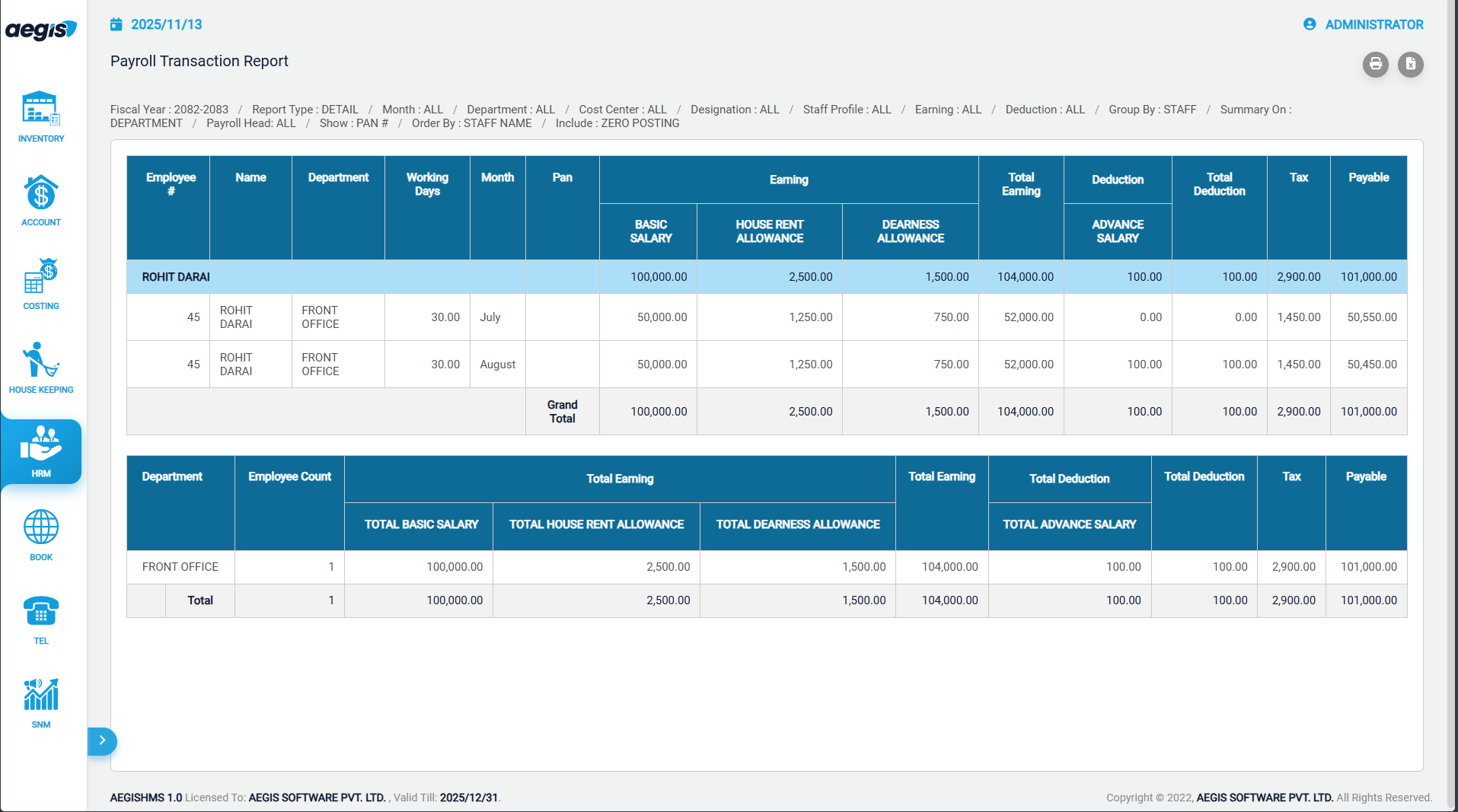
Report Features
- Summary Totals: Displays total amounts for all selected payroll heads.
- Customizable Column Order: Drag and reorder payroll heads to match your reporting format.
- Export Options: You can export the report to Excel for further analysis, emailing, or filing.
Best Use Cases
-
Finance reconciliation for monthly payroll
-
Cross-checking salary distribution by department or cost center
-
Preparing monthly MIS reports
-
Reviewing taxable vs. non-taxable components
-
Audit and compliance documentation
No Comments