
Restaurant Ordering System ( GUI )
Restaurant Ordering System - Functional & Business Logic Specification
This document defines the UI structure, functionality, user interactions, business rules, and expected system behavior for the restaurant self-ordering system.
Note: All images shown in this document are provided for reference and illustration purposes only. They represent sample UI concepts and do not indicate the final or actual design/UI. The actual UI may differ based on the finalized design and implementation requirements.
Sample UI:
|
|
 |
 |
The system is designed for customer to:
- Select Dine-In or Takeaway
- Browse and search the restaurant menu
- View detailed food information
- Check allergens and nutrition information
- Customize dishes
- Add items to cart
- Place multiple orders during the same dining session
- Track order status and previous order rounds
- Call restaurant staff digitally
- Change language and display theme
- View table and system information
| User | Main Responsibility |
|---|---|
| Customer | Browse menu, customize food, place orders, track orders, request staff assistance |
| Floor Staff | Receive guest assistance requests and respond to them |
| Kitchen Staff | Receive food orders, preparation instructions, and takeaway packing instructions |
| Restaurant Management | Configure menu, prices, taxes, allergens, categories, cancellation policy and ordering rules |
QR Code Access & Session Initialization
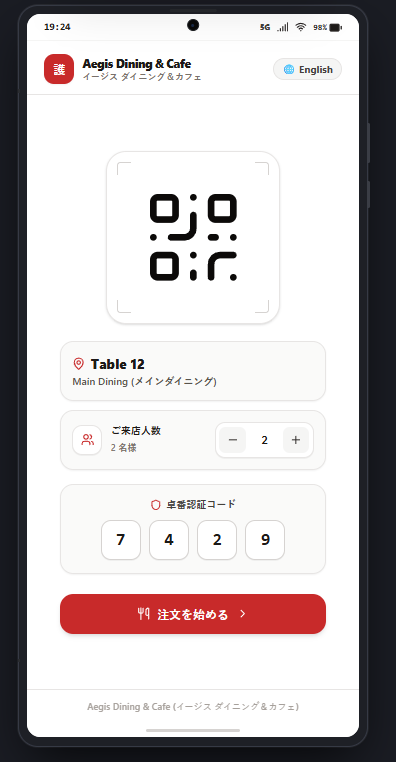
The customer's ordering session begins by scanning a QR code placed at the table.
- Step 1 - Scan: The customer scans the table QR code using their phone camera (no app installation required).
- Step 2 - Link Opens: The QR code resolves to a mobile web link that opens directly in the customer mobile browser and loads the Restaurant Ordering System for that specific table.
- Step 3 - Session Loads: The system initializes a session tied to the table and immediately displays the current table/session information, including the customer (guest) count.
Note: The guest/customer count should be confirmed (or editable) at session start, since it affects kitchen prep quantities and can be referenced by floor staff when responding to assistance requests.
1. Home Page Features
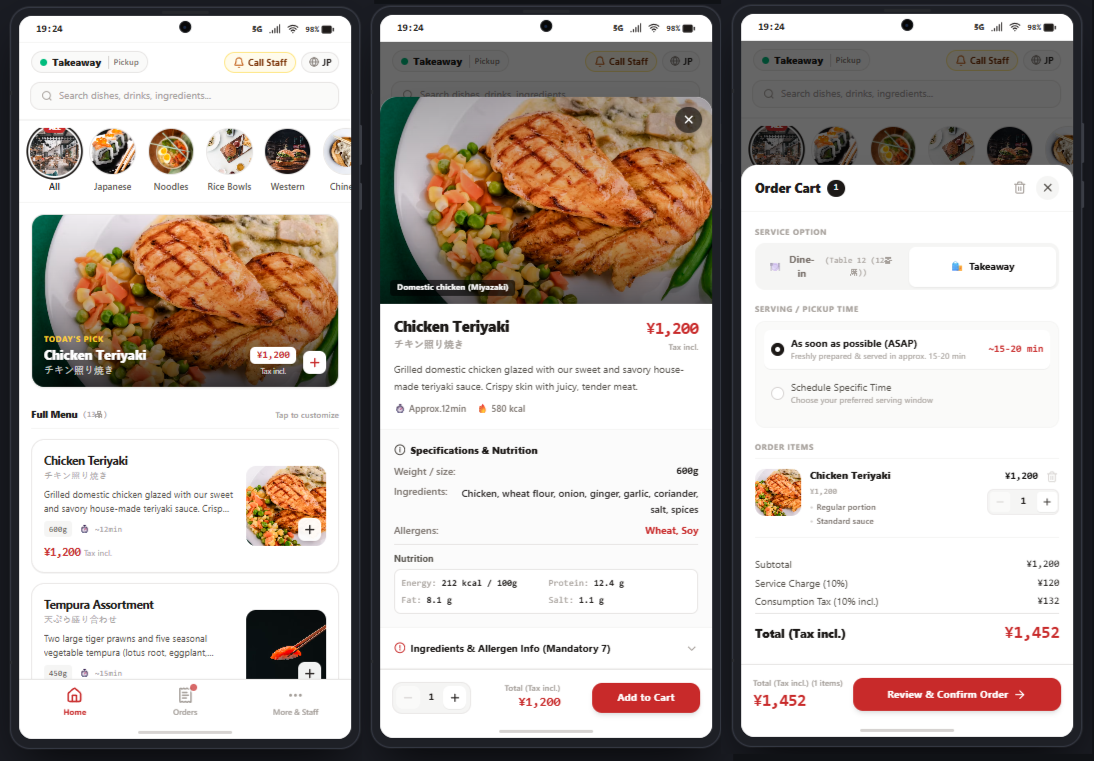
The Home Page acts as the main entry point for the customer and provides access to menu browsing, ordering, language selection, staff assistance, and the current order.
| Element | Function | Behavior |
|---|---|---|
| Table Number | Shows the current table | Example: Table 12 |
| Order Type | Allows the guest to select the order type | Guest can switch between Dine-in and Takeaway. |
| Menu Pricing | Displays prices based on the selected order type |
Dine-in: Menu price includes the applicable 10% consumption tax. Takeaway: Menu price includes the applicable 8% consumption tax. When the guest switches the order type, menu prices are updated accordingly. |
| Language Switcher | Changes interface language | Japanese - English |
| Staff Call Icon | Allows the guest to request assistance | Opens the Staff Assistance modal. |
Business Logic
- Instant recognition for both domestic customer and foreign tourists.
- Helps customers differentiate fast appetizers from slow main courses.
- Legally mandated in Japan under the Total Price Display Requirement.
- Opens the deep Food Detail Overview Modal for allergy review, flavor choices, and kitchen notes.
- For simple items without required options (such as draft beer), it adds the item to the order in 1 tap for rapid ordering.
Guests can request assistance without needing to physically call or wave to restaurant staff.
The Call Staff function should be available from:
- Header
- More & Stuff Page
| Request | Description |
|---|---|
| Water / Green Tea Refill | Request a refill |
| Table Bill & Checkout | Request the bill or checkout assistance |
| Extra Tableware | Plates, wipes, chopsticks, etc. |
| General Question / Assistance | Any other assistance |
Gap: Consider adding estimated wait time for staff arrival.
Language Selection
The system supports:
- Japanese
- English
Changing language must not clear the cart, reset the current order, or refresh the entire session.
1.1 Search Functionality
Search by dish name, ingredient, taste/flavor, category in Home Page.
1.2 Food Card
1.2.1 Card Information
| Information | Purpose |
|---|---|
| Food Image | Visual identification |
| Dish Name ( Eng / Jpn ) | Quick recognition |
| Short Description | Explains preparation, texture, and flavor |
| Portion / Weight | Communicates serving size |
| Preparation Time | Sets expectation |
| Tax-Included Price | Clearly displays customer-facing price |
| Add (+) Button | Quick ordering for simple items |
1.2.2 Food Card Interaction Rules
There are two different interaction paths.
| Action | Result | Intended Use |
|---|---|---|
| Tap Food Card | Opens Food Detail Modal | Detailed review/customization |
| Tap + Button | Adds item directly | Fast ordering |
1.2.3 Food Detail Overview
When the guest taps a food card, a bottom-sheet Food Detail Modal opens.
- Food Image
- Dish Name
- Description
- Price
- Weight / Portion
- Ingredients
- Nutrition
- Allergen Information
- Customization
- Special Request
- Quantity
- Add to Cart
1.2.4 Menu Allergens & Dietary Tags
The Guest Portal displays the allergen information and dietary tags configured for each menu item in CMS. Only active configurations are displayed to guests.
Allergen Information
The Guest Portal displays the allergen status associated with a menu item.
| Status | GP Display | Description |
|---|---|---|
| Contains | Contains | Indicates that the allergen is intentionally present in the menu item. |
| Free | Free | Indicates that the allergen is not present in the menu item. |
| Shared Equipment | Shared Equipment | Indicates that the allergen is not intentionally included, but the item may have been prepared using shared equipment. |
The following mandatory allergens are supported:
- Wheat
- Egg
- Milk
- Shrimp
- Crab
- Buckwheat
- Peanut
- Walnut
Example:
Peanut — Shared Equipment
This menu item does not contain peanuts, but it may have been prepared using equipment that also processes peanuts.
The Guest Portal displays dietary tags associated with the menu item.
| Dietary Tag | GP Display with Badge | Description |
|---|---|---|
| Vegetarian | Vegetarian | Indicates that the menu item meets the configured vegetarian requirements. |
| Vegan | Vegan | Indicates that the menu item meets vegan requirements, including Egg and Milk being Free. |
| Gluten Free | Gluten Free | Indicates that Wheat and Buckwheat are Free. |
| Halal | Halal | Indicates that the menu item does not contain pork or alcohol. |
Restaurant meals and over-the-counter prepared foods do not — there is no legal obligation to provide allergy information at all. That said, allergen disclosure in restaurants is officially encouraged as a voluntary practice.
" Many major chains publish allergen information voluntarily, despite having no legal duty to do so. McDonald's Japan offers an official menu-by-menu allergen search, and notes that items subject to cross-contact — shared frying oil, production lines, or in-store preparation — appear even in results filtered for "not used." The Skylark group (Gusto and other brands) runs a search site by brand covering the nine mandatory allergens plus 19 recommended items, with explicit warnings about shared cooking utensils, tableware, frying oil, and drink-bar nozzles. Mos Burger publishes its allergen data as PDF charts and notes that contamination at factories or in store kitchens remains possible (all per each company's official site as of August 14, 2026). "
https://japansoso.com/en/article/japan-restaurant-allergy-guide-2026
1.3 Portion Specs, Nutrition & Options (Add-Ons)
1.3.1 Portion Specs & Ingredients
The GP displays the portion size and ingredient information configured for the menu item.
| Information | GP Display | Behavior |
|---|---|---|
| Weight / Size | Portion size | Displays the configured value, such as 600g, 250ml, 5 skewers, or 2 pieces. |
| Ingredients-Ja | Ingredients | Displays the Japanese ingredient information when Japanese is selected. |
| Ingredients-En | Ingredients | Displays the English ingredient information when English is selected. |
1.3.2 Nutrition Information
The GP displays the configured nutritional information on the Food Detail Page when available.
| Information | Unit | GP Display |
|---|---|---|
| Energy | kcal | Example: 450 kcal |
| Protein | g | Example: 25 g |
| Fat | g | Example: 18 g |
| Salt | g | Example: 2.1 g |
If a nutrition value is not configured, that value should not be displayed on the GP.
Nutrition information older than 12 months should be flagged for review in the CMS. The GP should continue to display the configured value unless the item or nutrition information is made inactive or unavailable.
1.3.1 Customer Customization
The Food Detail Page displays the customization options configured for the menu item. Customization should clearly distinguish between Required and Optional choices. Customers can select only the options made available for the menu item.
1.3.1.1 Single Select
- Only one option can be selected.
1.3.1.2 Multi Select
Use checkboxes for independent add-ons.
- Multiple options can be selected.
Selected add-ons are included in the order and reflected in the order total before checkout.
1.3.2 Kitchen Special Request
A free-text field allows guests to provide additional instructions. The request should be sent to the kitchen together with the corresponding item.
1.3.3 Quantity & Add to Cart
Guests can adjust the quantity of the selected menu item using the − / quantity / + controls.
| Element | Behavior |
|---|---|
| − | Decreases the quantity by 1. |
| Quantity | Displays the current selected quantity. Default: 1. |
| + | Increases the quantity by 1. |
| Add to Cart | Adds the selected quantity, customizations, add-ons, and kitchen special request to the cart. |
| Current Amount | Always displays the latest calculated amount based on quantity, customizations, and add-ons. |
GP Food Detail Page — Overall Structure
Food Detail Page
│
├── A. Basic Menu Information
│   ├── Menu Image
│   ├── Menu Name
│   ├── Description
│   └── Price
│
├── B. Portion Specs & Ingredients
│   ├── Weight / Size
│   └── Ingredients
│
├── C. Nutrition Information
│   ├── Energy
│   ├── Protein
│   ├── Fat
│   └── Salt
│
├── D. Allergens & Dietary Tags
│   ├── Allergens
│   │   ├── Contains
│   │   ├── Free
│   │   └── Shared Equipment
│   └── Dietary Tags
│       ├── Vegetarian
│       ├── Vegan
│       ├── Gluten Free
│       └── Halal
│
├── E. Customization Options
│
├── F. Add-ons
│
├── G. Quantity
│
├── H. Special Instruction
│
└── I. Quantity & Add to Cart
On successful addition
- Item is added to cart.
- Cart count updates.
- Cart total updates.
- Confirmation toast appears.
2. Add to Cart
The Order Cart is the review step after the menu detail page. It opens as a bottom sheet over the menu. The guest checks the items, chooses the service option and serving time, sees the price breakdown, and moves on to final confirmation. Nothing is submitted from this screen.
Layout (top to bottom)
| # | Section | Contents |
|---|---|---|
| 1 | Header | Title "Order Cart", item-count badge, Clear Cart (trash) icon, Close |
| 2 | Service Option | Segmented toggle: Dine-in or Takeaway |
| 3 | Serving / Pickup Time | Radio: ASAP or Schedule Specific Time |
| 4 | Order Items | One row per cart line |
| 5 | Price Breakdown | Subtotal, Service Charge, Consumption Tax, Total |
| 6 | Sticky Footer | Running total, item count, Review & Confirm Order button |
2.1 Service Option
| Option | Sub-label | Tax rate | Notes |
|---|---|---|---|
| Dine-in | Table number (e.g. "Table 12", taken from the QR code), "10% Standard Tax" | 10% | Service charge applies |
| Takeaway | "8% Reduced Tax" | 8% | Service charge does not apply (to be confirmed) |
- Dine-in is selected by default when the guest arrives through a table QR code.
- Changing the option recalculates the breakdown immediately.
2.2 Serving / Pickup Time
As soon as possible (ASAP) vs Schedule Specific Time is not offered on every menu item. It is only enabled for specific items configured by Restaurant Management.
| Option | Behavior |
|---|---|
| ASAP |
Default. Shows an estimate (~15-20 min). Sub-text: "Freshly prepared & served in approx. 15-20 min" |
| Schedule Specific Time |
Reveals a serving-window picker. Sub-text: "Choose your preferred serving window" |
2.3 Order Item Row
| Element | Description |
|---|---|
| Thumbnail | Dish photo |
| Name | e.g. "Chicken Teriyaki" |
| Unit price | Price of one unit including selected add-ons |
| Selected options | e.g. "Regular portion", "Standard sauce" |
| Quantity stepper | − / count / + |
| Line total | Unit price × quantity |
| Delete icon | Removes this line only |
2.4 Price Breakdown
| Line | Formula |
|---|---|
| Subtotal | Sum of all line totals |
| Service Charge (10%) | Subtotal × 10% |
| Consumption Tax | (Subtotal + Service Charge) × tax rate (10% dine-in, 8% takeaway) |
| Total (Tax incl.) | Subtotal + Service Charge + Consumption Tax |
Different tax rules for dine-in (standard consumption tax 10%) vs takeaway (reduced 8%).
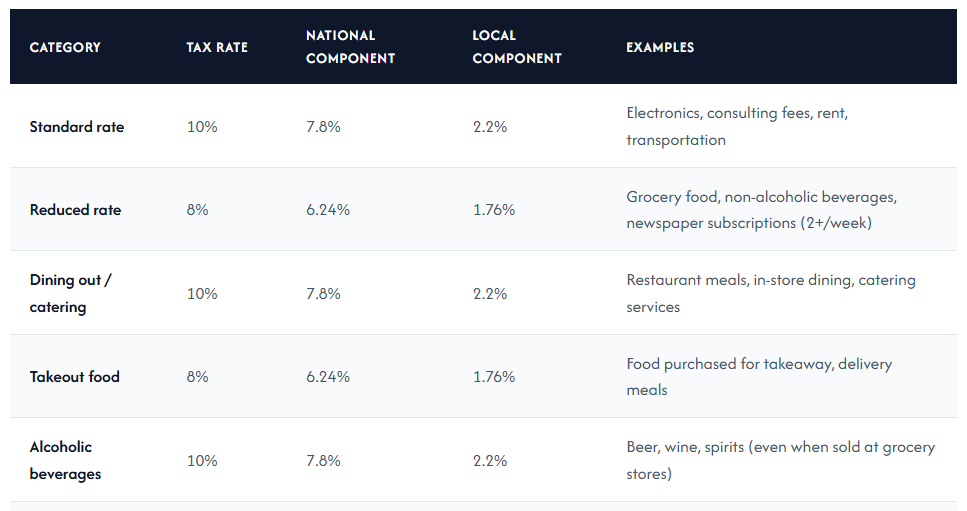 |
The tax line shows the rate label ("10% Standard" or "8% Reduced"), which supports the dual-rate display requirement.
Business Rules
- Tax rate is decided by the service option, never by the individual item.
- Rounding: tax is rounded down to whole yen (confirm against the accounting/HMS setting).
- Totals are always recalculated from the current cart and are never stored on the client.
- The cart persists when the sheet is closed and while the table session is active.
- Scheduled orders must respect opening hours and the minimum preparation time.
3. Orders Page
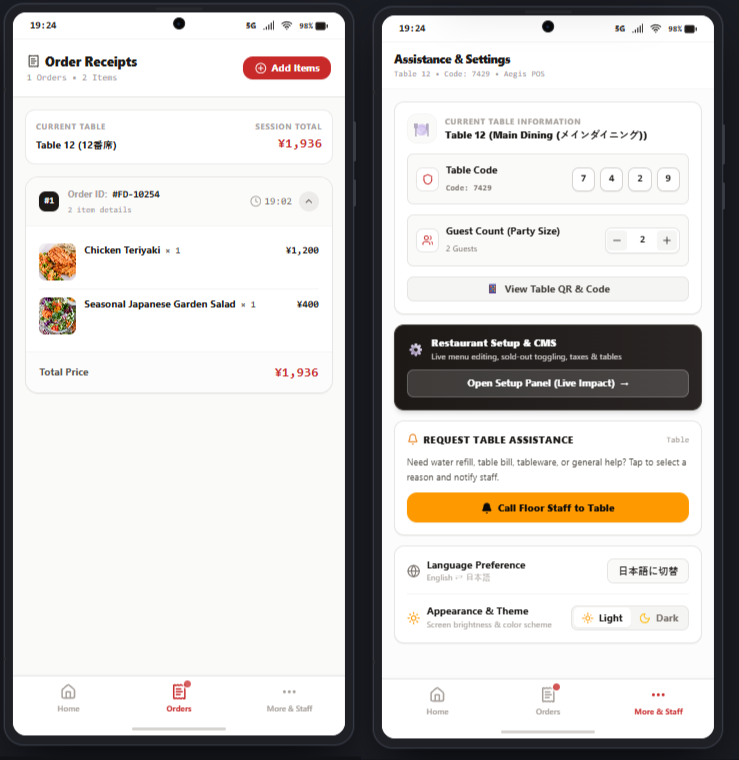
The Order Receipts page is the guest's running record for the current table session. It appears after an order is confirmed and lists every order placed at the table, with the session total. The guest can review what was ordered, see when it was placed, and go back to the menu to add more items.
| # | Section | Contents |
|---|---|---|
| 1 | Header | Title "Order Receipts", summary line ("1 Orders • 2 Items"), Add Items button |
| 2 | Session Summary Card | Current Table label and Session Total |
| 3 | Order Card(s) | One collapsible card per placed order |
3.1 Components
3.1.1 Header
| Element | Description |
|---|---|
| Title | "Order Receipts" with a receipt icon |
| Summary line | Number of orders and total number of items in the session |
| Add Items button | Red primary button. Returns to the menu to start a new order in the same session |
- The item count is the sum of quantities across all orders in the session.
- Add Items creates a new order (a new Order ID). It does not edit a placed order.
3.1.2 Session Summary Card
| Field | Example | Description |
|---|---|---|
| Current Table | Table 12 (12番席) | Table number from the QR code, shown in English and Japanese |
| Session Total | ¥1,936 | Grand total of all orders in the session, tax included |
- The table label follows the selected app language (JP/EN).
- The session total updates whenever a new order is placed or an order is cancelled.
3.1.3 Order Card
| Element | Example | Description |
|---|---|---|
| Sequence badge | #1 | Order number within the session (1, 2, 3...) |
| Order ID | #FD-10254 | Unique order reference, the same one staff and the kitchen see |
| Detail line | 2 item details | Number of line items in this order |
| Time | 19:02 | Time the order was placed |
| Expand/collapse chevron | - | Shows or hides the item list |
3.2 Order Cancellation Policy
Customers cannot cancel a submitted order directly through the app at any time. Self-service cancellation is only available while the order is within its active cancellation window before the countdown/preparation timer (time screen) on the order finishes.
| Stage | Cancellation Method | Behaviour |
|---|---|---|
|
Time Screen still running (Before Kitchen start prep) |
Self-service cancel | Customer can cancel the order directly from the Order Receipts |
|
Time screen finished (prep window elapsed / kitchen has started) |
Request-based cancellation only | Customer can no longer cancel directly, must submit a cancellation request via the Call Staff / Table Assistance |
Request-based flow once the time screen has finished:
- Customer opens Call Staff / Request Table Assistance.
- Customer selects a reason indicating they want to cancel an order.
- Request is sent to Floor Staff.
- Floor Staff reviews the request with the kitchen and manually approves, partially approves, or declines the cancellation (e.g., if the dish is already prepared).
Business Rules
- All orders belong to the current table session and share one Session Total.
- Placed orders cannot be edited by the guest. Changes happen through cancellation or a staff request, following the cancellation time window setting.
- Each order carries its own Order ID, which is also used for kitchen routing (KDS) and billing.
- Combo items appear as one grouped line here but are billed as separate line items in HMS.
- Totals are calculated by the system, never on the client.
- The page stays available until the table session is closed by staff.
3. More Page (Assistance & Settings)
The More page is where a guest manages the table session and asks for help. It shows the table and session code, lets the guest set the party size, lets them call floor staff, and holds language and theme settings.
| # | Section | Contents |
|---|---|---|
| 1 | Header | Title "Assistance & Settings", context line ("Table 12 • Code: 7429 • Aegis POS") |
| 2 | Current Table Information | Table name, Table Code, Guest Count, View Table QR & Code |
| 4 | Request Table Assistance | Description and the Call Floor Staff to Table button |
| 5 | Preferences | Language Preference and Appearance & Theme |
- The context line shows the table number, the session code and the POS name.
- It is generated from the QR code and the active table session.
3.1 Guest Count rules
-
The guest count is initially set when the table session starts.
-
After scanning the QR code, guests can view the current guest count on this page.
-
Guests can change the guest count themselves. Staff do not set or modify it from this page.
-
The guest count can be increased up to the table capacity.
-
The guest count can be decreased, but it cannot go below the minimum allowed count.
-
The − button is disabled when the guest count reaches the minimum.
-
The guest count is used only to inform the kitchen of the number of guests at the table.
-
The guest count does not restrict the number of users who can join the table session. Any number of users can join through the session code, regardless of the guest count.
3.2 Request Table Assistance
| Element | Description |
|---|---|
| Description | Explains that the guest can ask for a water refill, table bill, tableware or general help |
| "Table" tag | Shows the request is sent for this table |
| Call Floor Staff to Table | Orange primary button. Opens a reason selection, then notifies staff |
Flow
- The guest taps the button.
- The guest selects a reason (water refill, bill, tableware, other).
- A request is sent to staff with the table number and reason.
- The guest sees a confirmation. A repeat request is blocked for a short cooldown to avoid spam.
3.3 Preferences
| Element | Description |
|---|---|
| Language Preference | Shows the current language (English) and a button to switch Japanese. The button label is written in the target language |
| Appearance & Theme | Light / Dark toggle for screen brightness and color scheme |
- The language choice applies to the whole app, including the table name, menu and receipts.
- The choice and theme are remembered on the device for the session.
Business Rules
- The Table Code identifies the active table session and changes for each new session.
- Guest count can only be reduced down to the number of joined guests, never lower.
- Assistance requests always carry the table number and are routed to floor staff.
- Setup panel changes are live. Any edit affects what all guests see.
- Language and theme are per device and do not affect other guests.
No Comments