
CMS → Ordering App → HMS/POS Integration
CMS → Ordering App → HMS/POS Integration Specification
Note: All images shown in this document are provided for reference and illustration purposes only. They represent sample UI concepts and do not indicate the final or actual design/UI. The actual UI may differ based on the finalized design and implementation requirements.
1. Combo Menu
This section is the reference for how a Combo is built in CMS Setup (Self-Ordering System Setup), how it appears to the guest in the Ordering App, and how it is billed in HMS › POS › Table Order.
The Combo is an Ordering App concept only. It exists purely to help the guest select several related items together at a bundled price. It has no equivalent object in HMS. Once an order is placed, every item inside a combo is billed in HMS as its own fully independent order line, at the combo-adjusted price in grouping format.
Example used throughout this section:
Combo 1 is built from two selectable groups. The guest picks one item from each group:
| Combo Sub-Group |
Selectable Items (standalone price) |
Combo Price (when chosen inside Combo 1) |
|---|---|---|
| Chicken Momo (pick 1) |
|
|
| Soft Drink (pick 1) |
|
|
Result: guest pays ¥150 for Combo 1 (¥70 + ¥80), instead of the standalone total the two items would otherwise cost.
1.1 CMS Setup - Combo
| Field Name |
Data Type |
Required |
Validation & Input Constraints |
|---|---|---|---|
| id | String (slug) |
Yes |
Unique per outlet |
| comboName | String |
Yes |
1–30 chars |
| effectiveFrom | Date |
No |
Date from which the combo is available |
| effectiveTo | Date |
No |
Date until which the combo is available |
| startTime | Time |
No |
Daily start time |
| endTime | Time |
No |
Daily end time |
| applicableDays | Array ( checkbox ) |
Yes |
Already defined 22 Sep 2026 — combo availability window. |
| isActive | Boolean |
Yes |
Whether the combo is available for sale |
1.2 Combo Sub-Group
| Field Name | Data Type | Required | Description |
|---|---|---|---|
| id | String / Auto | Yes | Unique sub-group ID |
| title | String | Yes | Group name |
| decription | Text | Yes | - |
| selectionType | Enum | Yes | Single Select / Multi Select |
| minSelect | Integer | Yes | Minimum number of items guest must select |
| maxSelect | Integer | Yes | Maximum number of items guest can select |
| required | Boolean | Yes | Whether selection is mandatory |
1.3 Combo Group Item
| Field Name | Data Type | Required | Description |
|---|---|---|---|
| itemId | Reference | Yes | Existing Menu Item selected from Menu Setup |
| itemName | Reference / Read-only | - | Automatically displayed from Menu Setup |
| standalonePrice | Integer (JPY) / Read-only | - | Automatically displayed from Menu Setup |
| comboPrice | Integer (JPY) | Yes | Price charged when the item is selected in this combo |
| isDefault | Boolean | No | Sets the item as the default selection |
1.3.1 Combo Strcuture
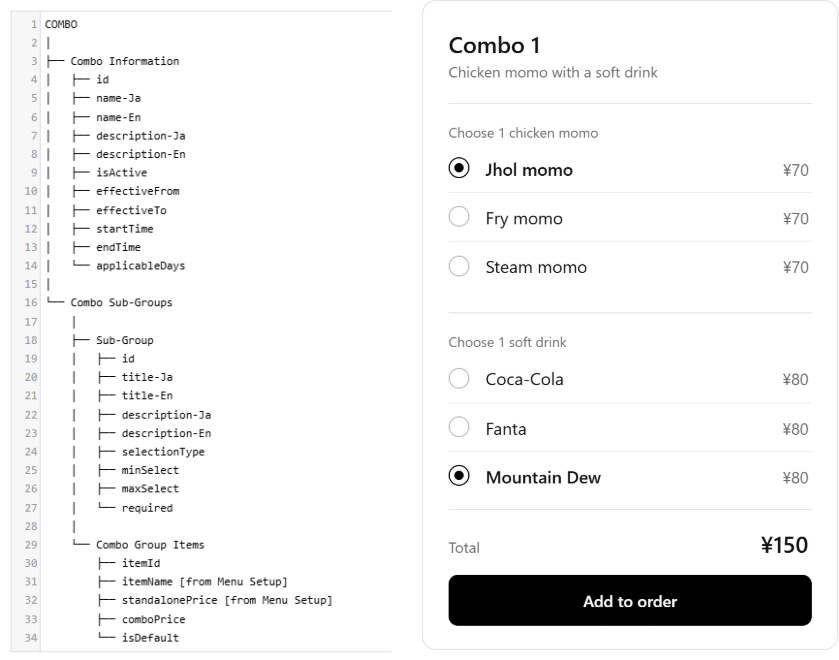 |
So the important relationship is:
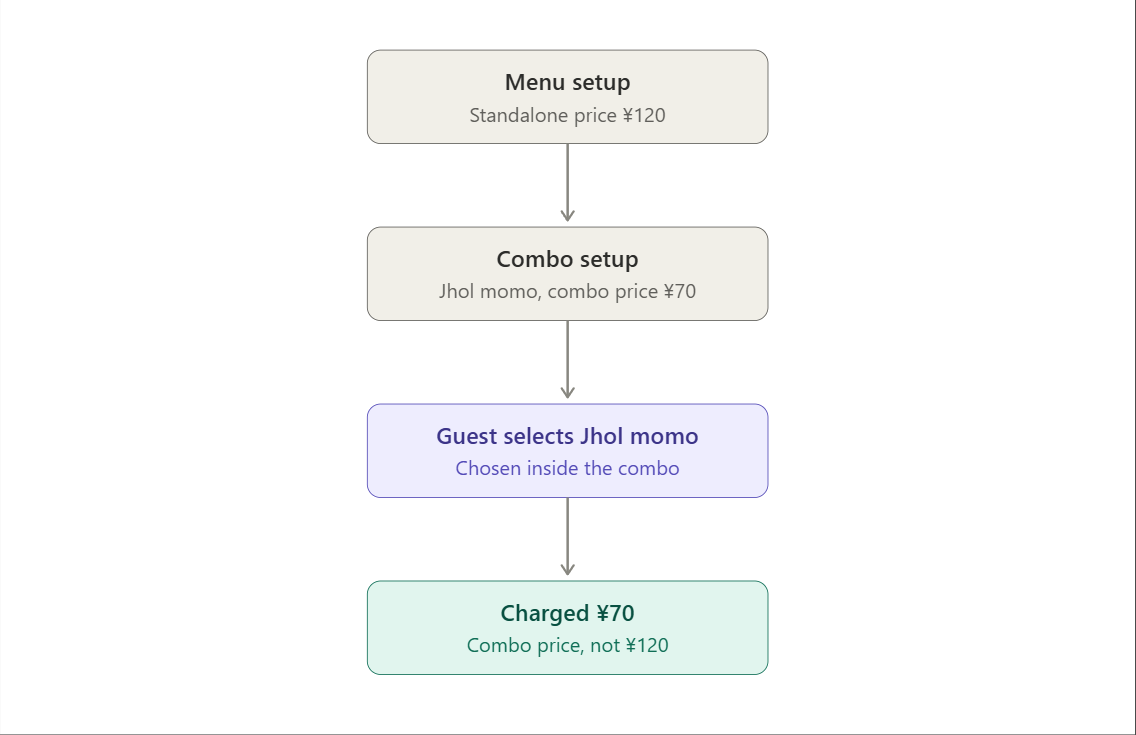
The ¥120 remains the normal standalone price. The combo configuration only tells the system that when Jhol Momo is selected inside Combo 1, its price is ¥70.
|
|
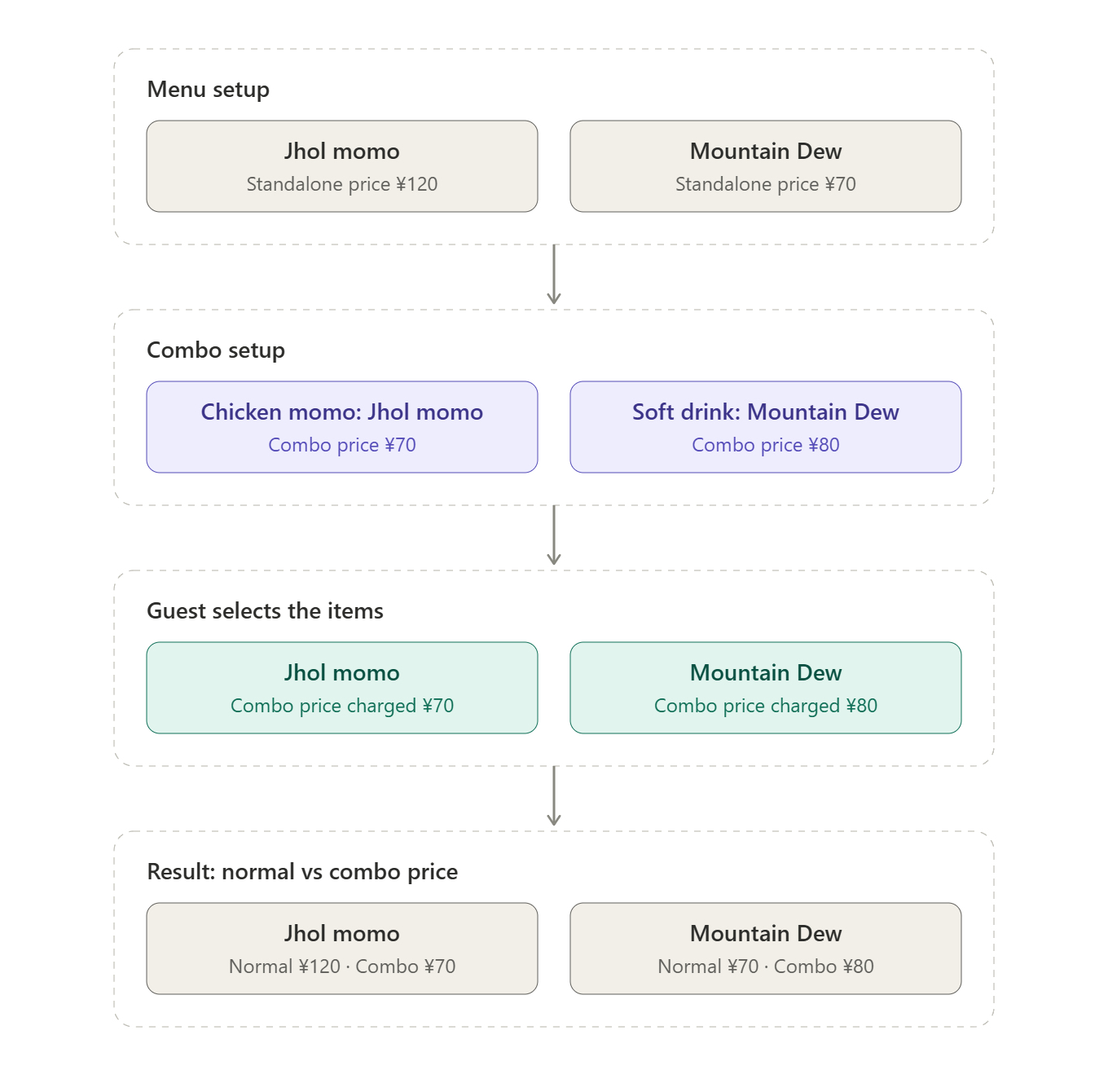
Ordering app behaviour (guest-facing):
- The guest opens a combo (e.g. Combo 1) and sees its groups, such as "Chicken momo" and "Soft drink".
- Each group asks the guest to choose 1 item. The options are Jhol, Fry, or Steam momo, and Coca-Cola, Fanta, or Mountain Dew.
- Each option shows its combo price (¥70 for momo, ¥80 for drinks), not its standalone price.
- The guest can't continue until every required group has a selection.
- The running total updates as the guest picks (for example ¥70 + ¥80 = ¥150).
- Tapping "Add to order" adds the combo to the cart as one grouped line.
- The cart shows the chosen items under the combo, with the combo price charged for each.
- If the same item is ordered outside the combo, it's charged its standalone price (Jhol Momo ¥120, Mountain Dew ¥70).
- The guest can edit or remove the combo from the cart before placing the order.
- On placing the order, the guest sees the final total and a confirmation.
1.4 HMS › POS › Table Order behavior
Billing rule
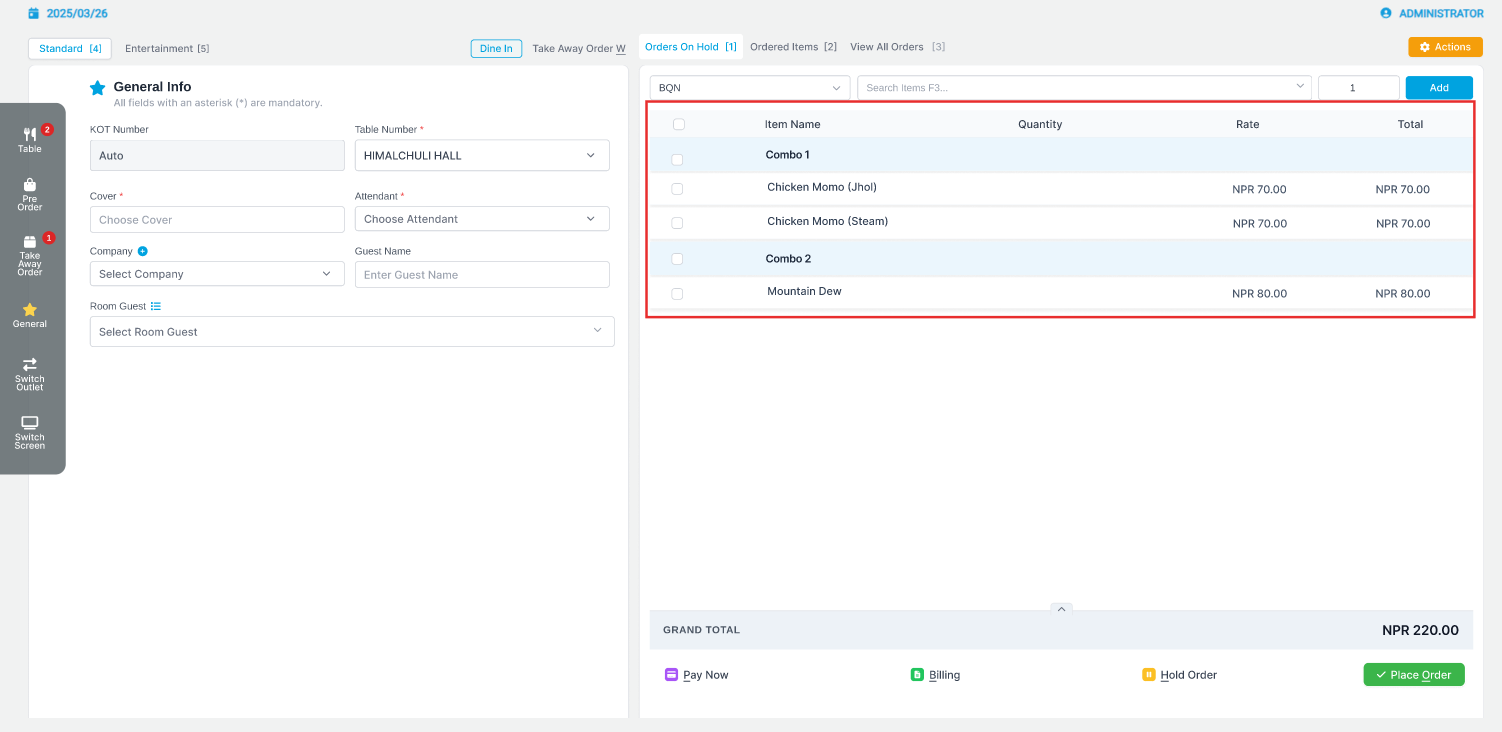
HMS never receives, stores, or displays a “Combo 1” line. When the order is sent to HMS, the combo is shown in grouping format with the individual items price. Each item is then billed separately as a normal Table Order item using its combo price.
| id | HMS Table Order Line Item | Price |
|---|---|---|
| 1 | Chicken Jhol Momo |
¥70 |
| 2 | Mountain Dew |
¥80 |
When an order is placed through Mobile Order POS, the ordered items appear on the HMS >> POS >> Ordering Page.
|
|
1.5 Attendant Handling for Self-Ordering Orders
In the Self-Ordering App, guests do not select an attendant when placing an order. However, in HMS >> POS >> Ordering, the Attendant field is mandatory.
To handle this difference, HMS should include a dedicated default attendant for Self-Ordering App orders. This attendant should be created through seed data with a system-defined ID.
When an order is received from the Self-Ordering App, this default attendant will be automatically assigned to the order.
This ensures that orders received from the Self-Ordering App satisfy the mandatory Attendant requirement in HMS >> POS without requiring the guest to select an attendant.
No Comments