Role Management
Role Management
Role management in a PMS involves defining different roles or job titles within the system and assigning specific permissions and responsibilities to each role. It ensures that users have appropriate access levels and restrictions based on their designated role. Role management helps maintain data security, streamline workflows, and enforce accountability within the project management system.
View Predefined Roles
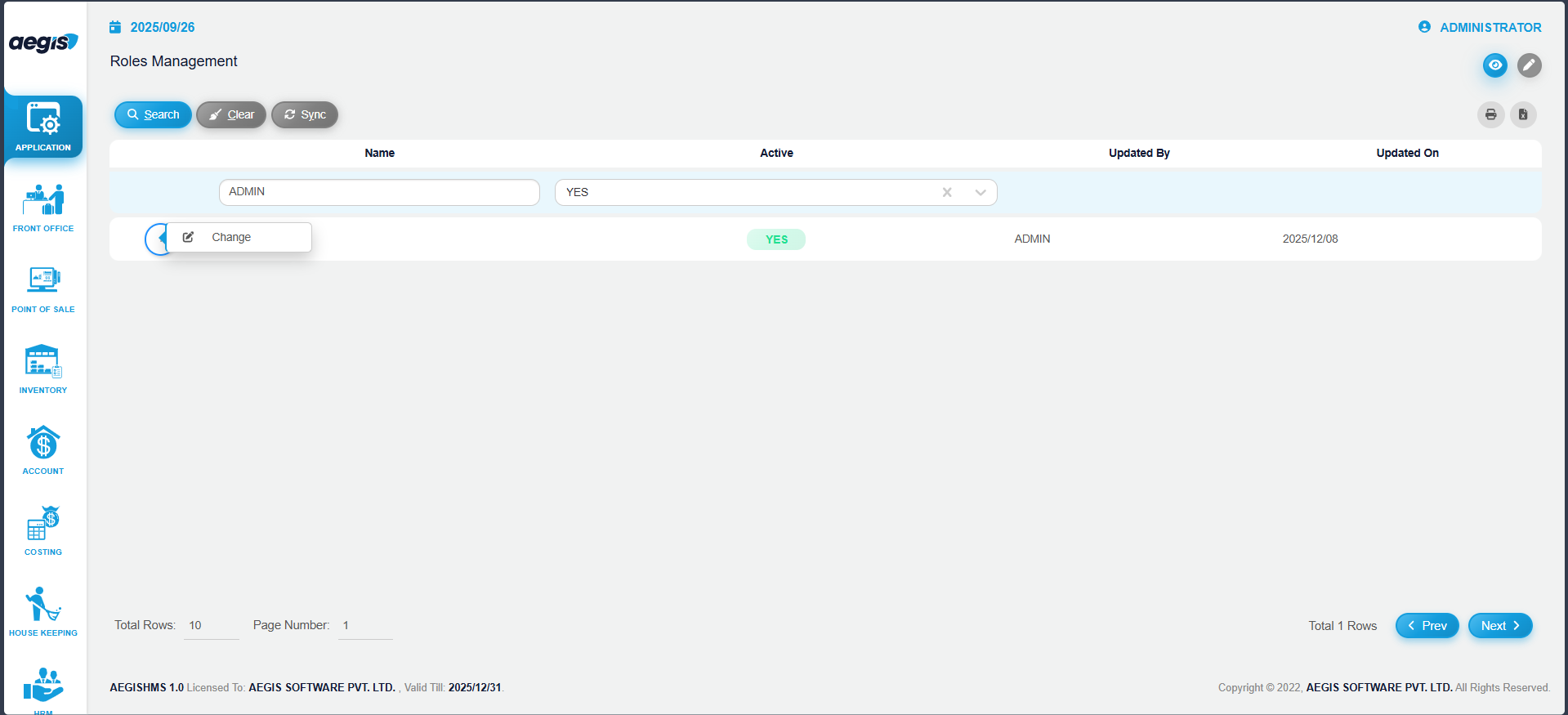
To manageopen User / Role Management, go to Application >> Tools >>the Role Management module:
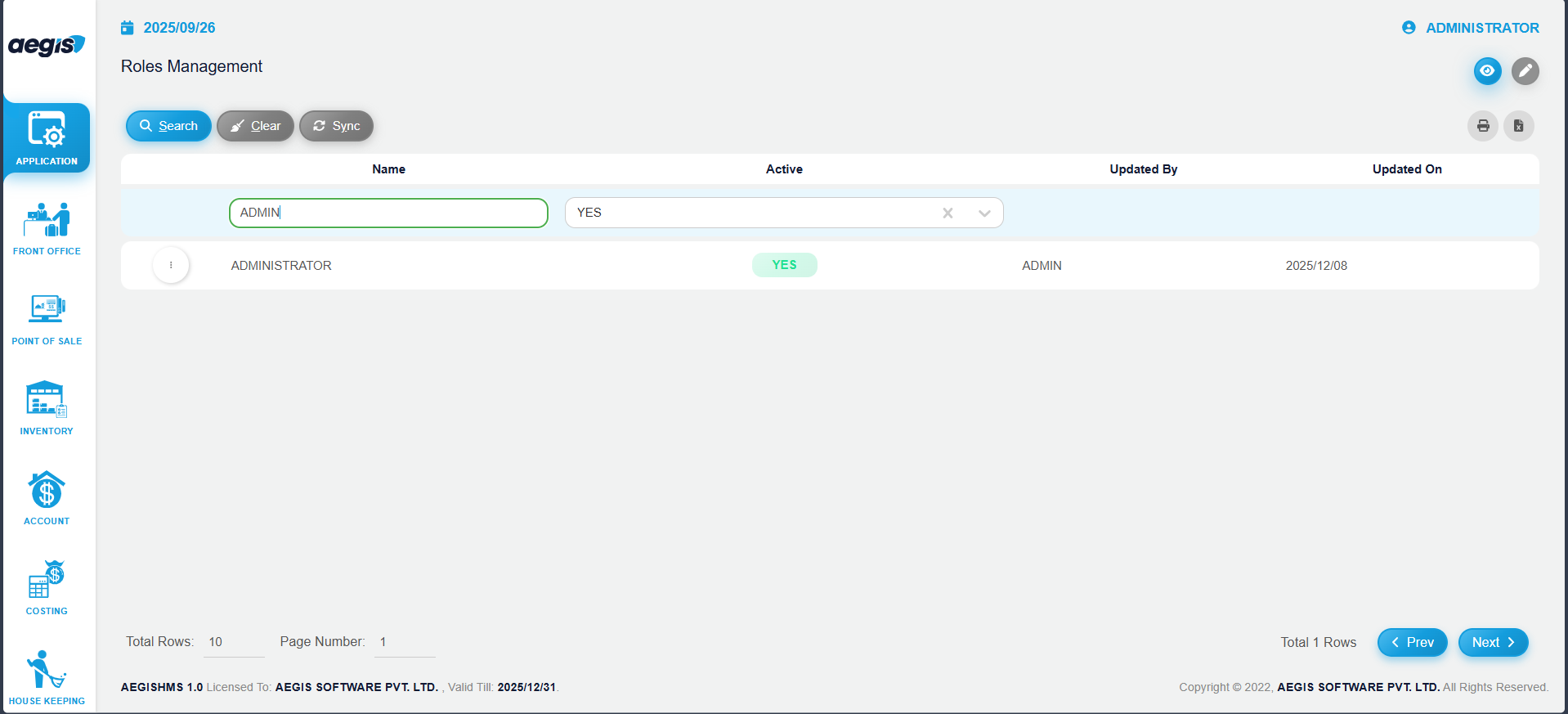
You will see the followinglist screen.of all predefined roles.
In this screen, you can:
-
View all roles already added to the system
-
Search roles by Role Name or other available filters using the header above the search bar
-
Click Search or press ALT + S to display results
Add New Roles
To create a new role:
-
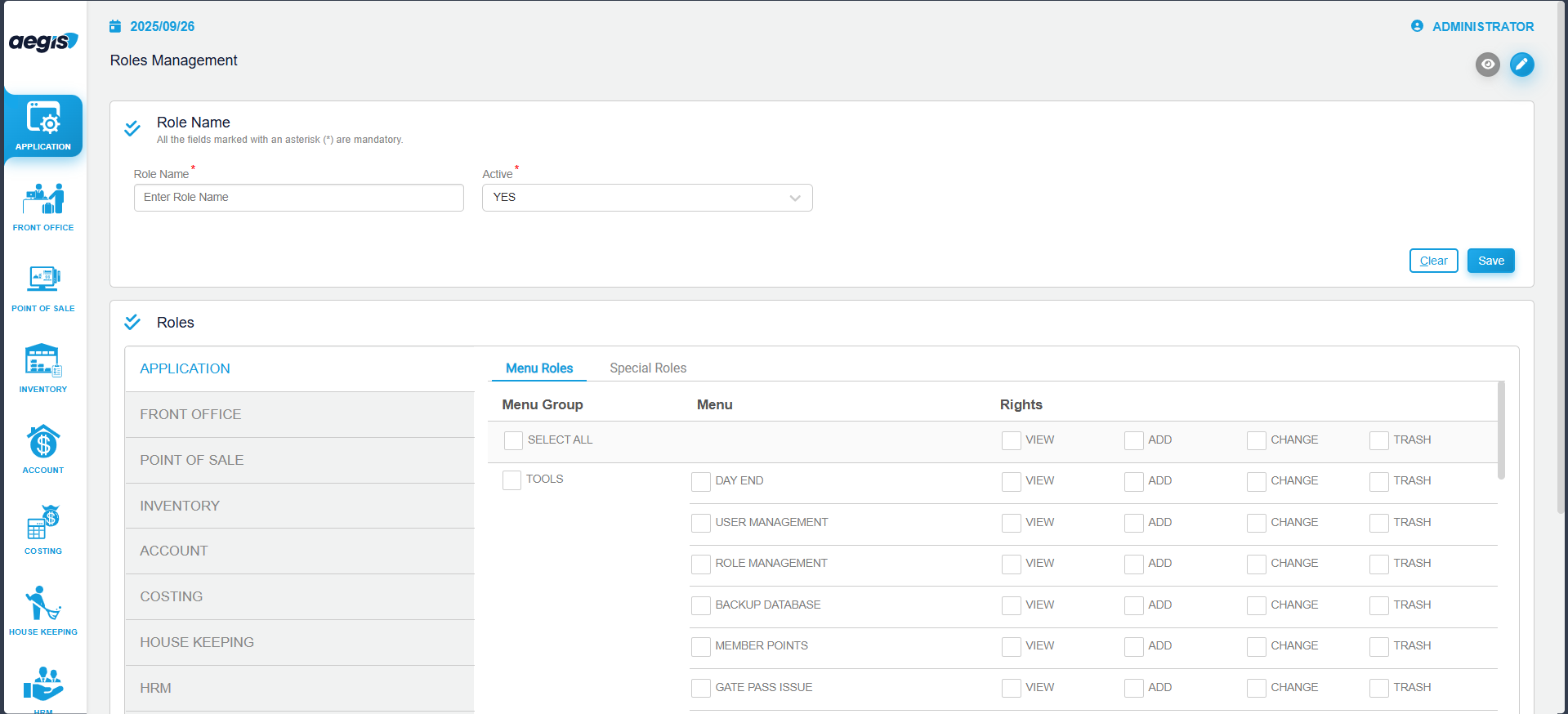
Press Alt+2 to addClick theRoles.pencilYouiconcanorgivepressspecificALTrole+to2specific -
according to their job responsibilities. You will seeEnter the
followingRolescreenNameand -
have to fillSelect the required
fieldspermissions by checking the appropriate modules andpressactionsCtrl+ -
Press CTRL + S to save the
information.role
Once saved, this role can be assigned to users based on their job responsibilities.
Manage Existing Roles
To modify an existing role:
-
Search roles by Role Name or other available filters using the header above the search bar
-
Click the three-dot on the left side of the role list
-
Select Change
-
Update the required details or permissions
-
Save the changes
Note: Updating role permissions will automatically update the permissions of all users assigned to that role.